 Kernline
How to copy a website component into Cursor or Claude
Screenshots make AI guess layout and colour. Kernline copies the element's trimmed HTML, the styles that matter, design tokens, and hover or breakpoint states so Cursor, Claude, or ChatGPT can rebuild accurately.
Option A: Copy for AI (single element)
- Install Kernline and open it on the tab with the component.
- Pin the inner element you care about (for example a button inside a card).
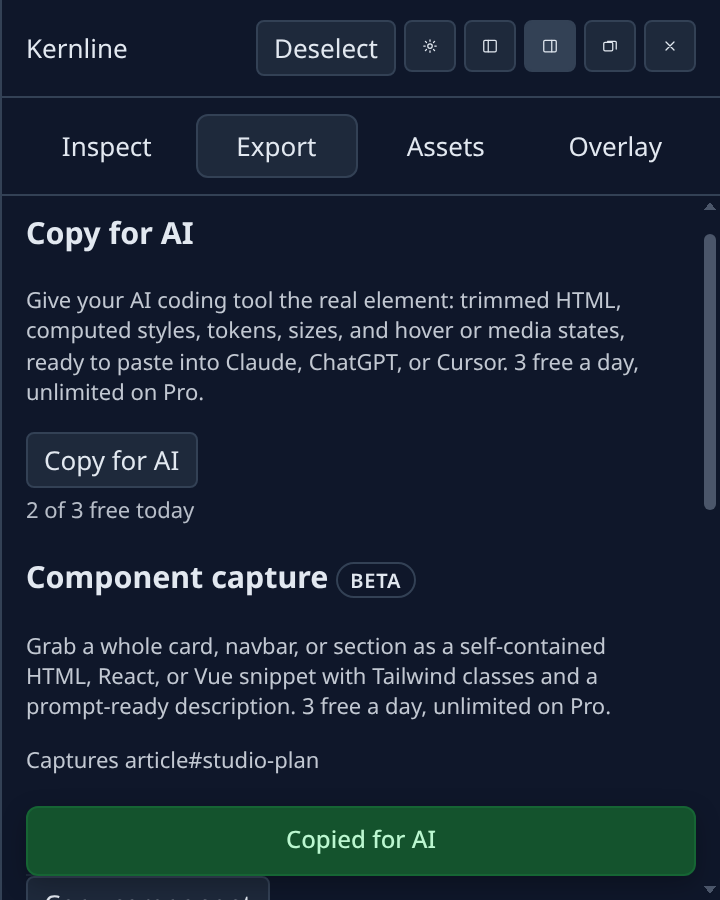
- Click Copy for AI on the Inspect or Export tab. Kernline bundles HTML, computed CSS, tokens, sizes, and states as plain text.
- Paste into Cursor chat or Claude. Ask it to recreate the component in your stack. Free includes 3 copies per day on your device.
Option B: Component capture (whole region)
- Pin something inside a card, navbar, or section.
- On Export, choose HTML, React, or Vue, then Copy component. Kernline walks up to the nearest region and maps styles to Tailwind utilities.
- Paste the snippet and description into your AI tool or editor.
Optional: enable the local MCP server in Kernline settings to stream
inspection output to Cursor on 127.0.0.1 only, off by default. Page content
never uploads to Kernline servers.